Pair your Chipper 3X to the Roc Services mobile app
To accept card-present payments on the Roc Services mobile app, you must pair the BBPOS Chipper 3X card reader with the mobile app. Before you begin, make sure you've turned on Bluetooth on your mobile device.
During the pairing process, you must complete a test transaction. After you pair the card reader, the card reader stays paired with the mobile app for future transactions.
To pair your card reader with the mobile app, complete the following steps:
Step 1: Enable pairing mode on the card reader
- Press the power button to turn on your card reader.
- Press and hold the power button until the blue light flashes.
Step 2: Pair the card reader to the mobile app
From the Quick Charge screen of the mobile app, use the keypad to enter a dollar amount, for example, $1.00, and then select +.
Select Charge.
Select Swipe / Insert.
(Optional) If a tip prompt appears, select No Tip.
When a Bluetooth pairing request appears, confirm that the card reader name is accurate, and then select Pair.
Enter the Bluetooth passkey that is on the back of the card reader.
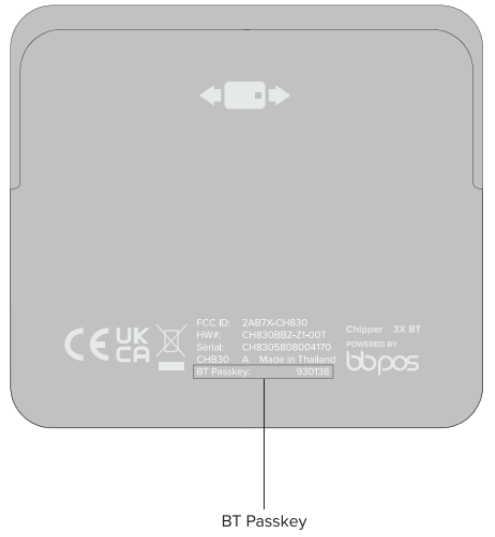
Select Pair.
Insert, swipe, or tap a card.
(Optional) To send a receipt, select Share Receipt, and then select a receipt option:
- To send an email receipt:
- Select Email Receipt.
- Enter the customer's email address.
- Select Send Email.
- To send an SMS receipt:
- Select SMS Receipt.
- Enter the customer's phone number.
- Select Send SMS.
- To send an email receipt:
Refund the test transaction. For more information about how to refund a transaction, go to Run a referenced refund on the Roc Services mobile app.
After you pair the card reader, you can run a card sale. For more information about how to run a card sale, go to Run a card sale on the Roc Services mobile app.