Chipper 3X Quick Start Guide
Roc Services mobile app
Set up your Chipper 3X device to run transactions with the Roc Services mobile app.
Your new device
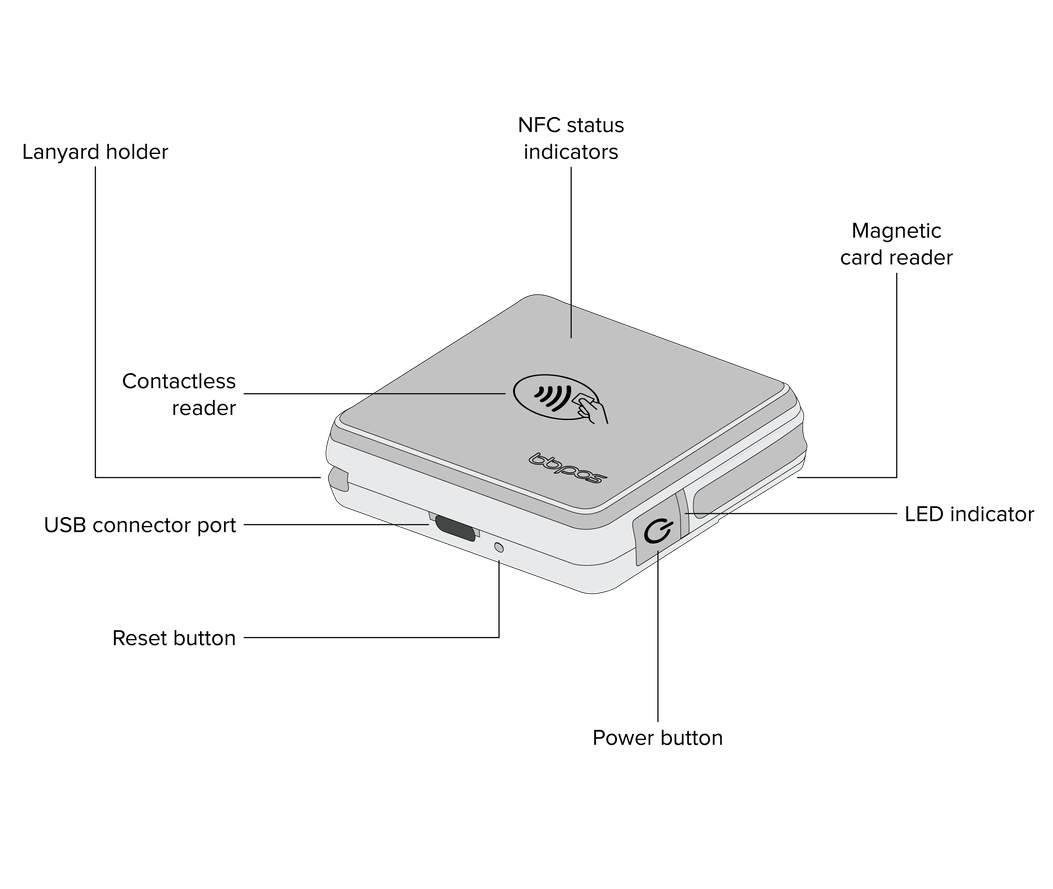
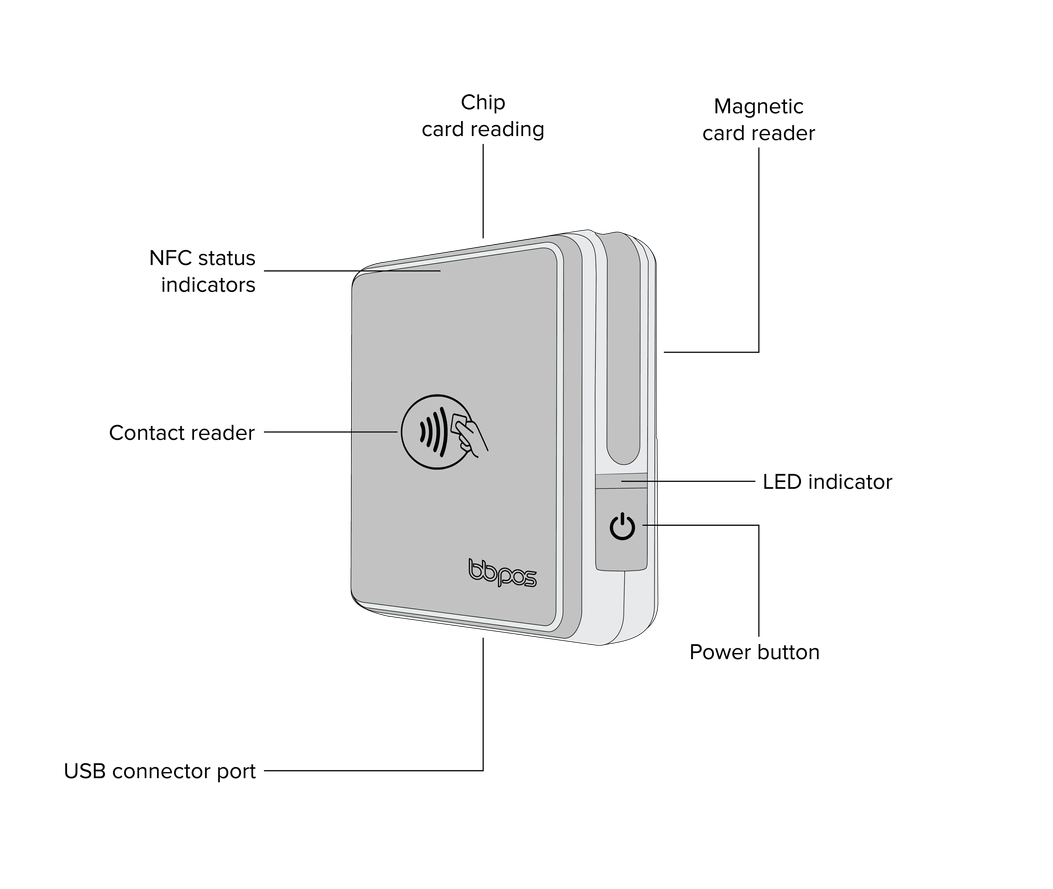
Getting started
To set up your Chipper 3X, complete the following steps:
Step 1. Charge your Chipper 3X.
Step 2. Install the Roc Services app on your mobile device.
Step 3. Connect your Chipper 3X to your mobile device.
Step 1. Charge your Chipper 3X
The LED above the power button indicates if your Chipper 3X is charging.
- A red light indicates that your Chipper 3X is charging.
- A green light indicates that your Chipper 3X is fully charged.
Step 2. Install the Roc Services app on your mobile device
- Open your app store, and then search Roc Services.
Step 3. Connect your Chipper 3X to your mobile device
Turn on your Chipper 3X, and then use your mobile device to complete the following steps:
- Turn on Bluetooth.
- Scan for your Chipper 3X.
- From the list of devices, select the serial number of your Chipper 3X.
- Enter the passkey that is on the back of your Chipper 3X.
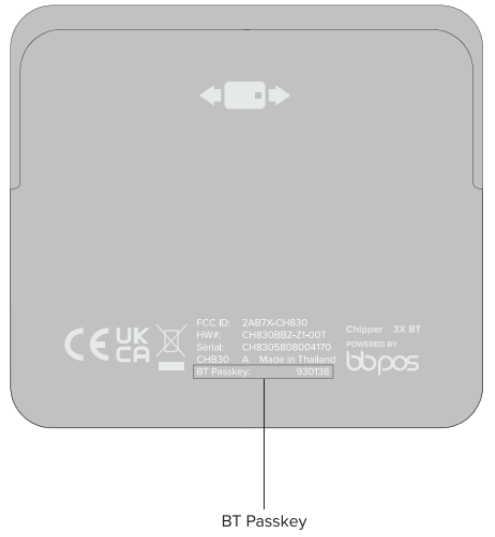
Troubleshooting
My mobile device can't connect to my Chipper 3X
If your mobile device can’t detect your Chipper 3X, complete the following:
- Press the power button on your Chipper 3X.
- Make sure that your Chipper 3X is within range of your mobile device.
- Charge your Chipper 3X.
My Chipper 3X doesn’t turn on
Charge your Chipper 3X, and then press the power button.
If your Chipper 3X still doesn’t turn on, complete the following steps:
- Use a paperclip to press the reset button at the bottom of the Chipper 3X.
- Press the power button.
Any questions?
Contact our Customer Support team at 888.477.4510 or email support@rocpos.com.