Use the Self-Care Portal to block a card
Self-Care Portal
You can use the Self-Care Portal to block a customer’s card to prevent them from using it in future transactions.
You can block a card only after the customer has used it and the transaction is in an open batch or a closed batch. The steps you need to follow depend on the type of batch that the transaction is in:
Open batch
- Sign in to https://payments.payroc.com/merchant/selfcare/.
- On the side menu, select Reporting, and then select Open Batch.
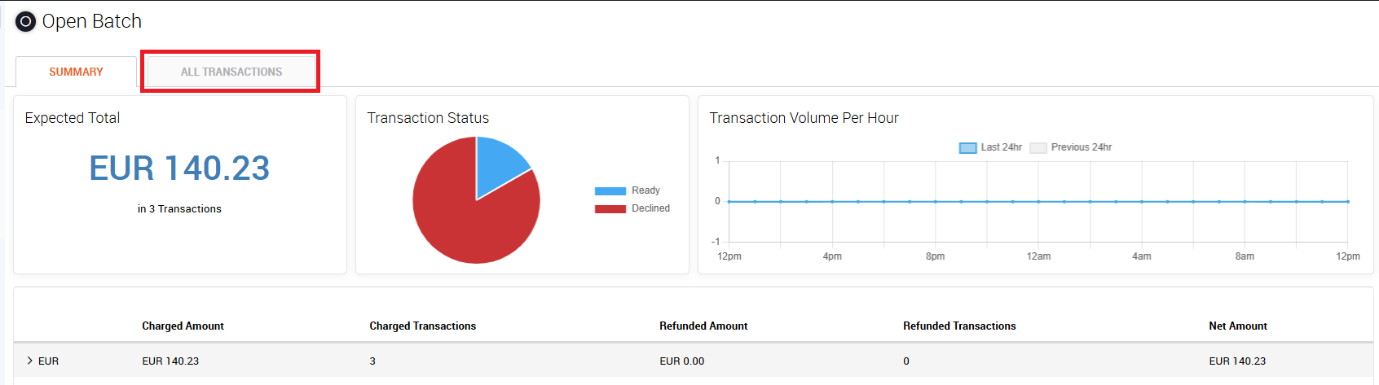
- Go to the ALL TRANSACTIONS tab.
4. From the list of transactions, locate the card that you want to block.
5. From the Action column, select  , and then select Block Card.
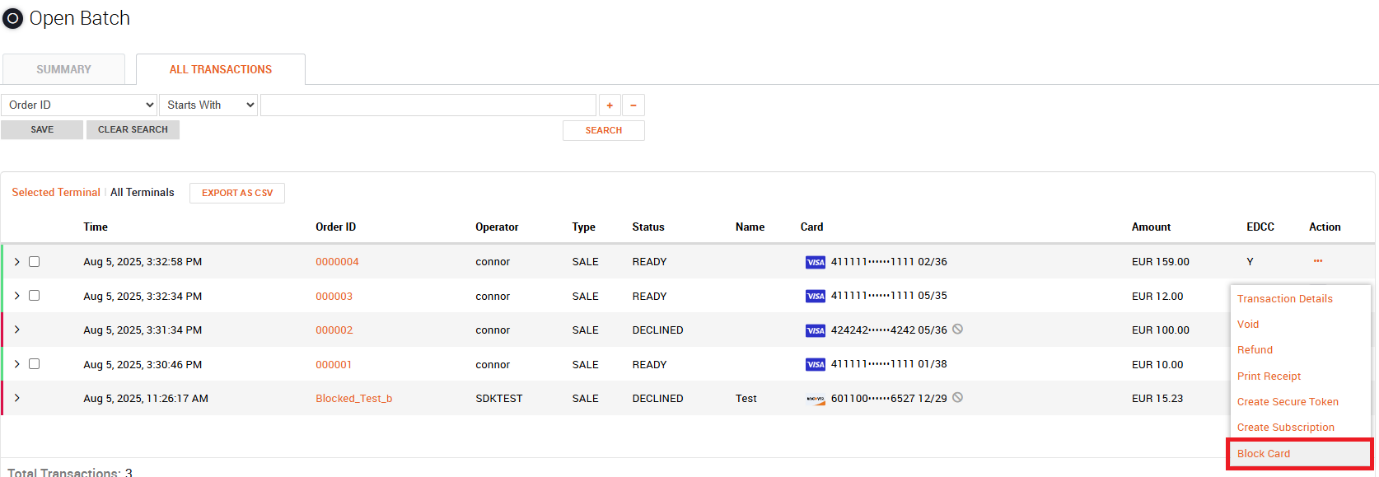
6. In the dialog box, enter a reason for blocking the card, and then select BLOCK.
Closed batch
- Sign in to https://payments.payroc.com/merchant/selfcare/ (opens in a new tab).
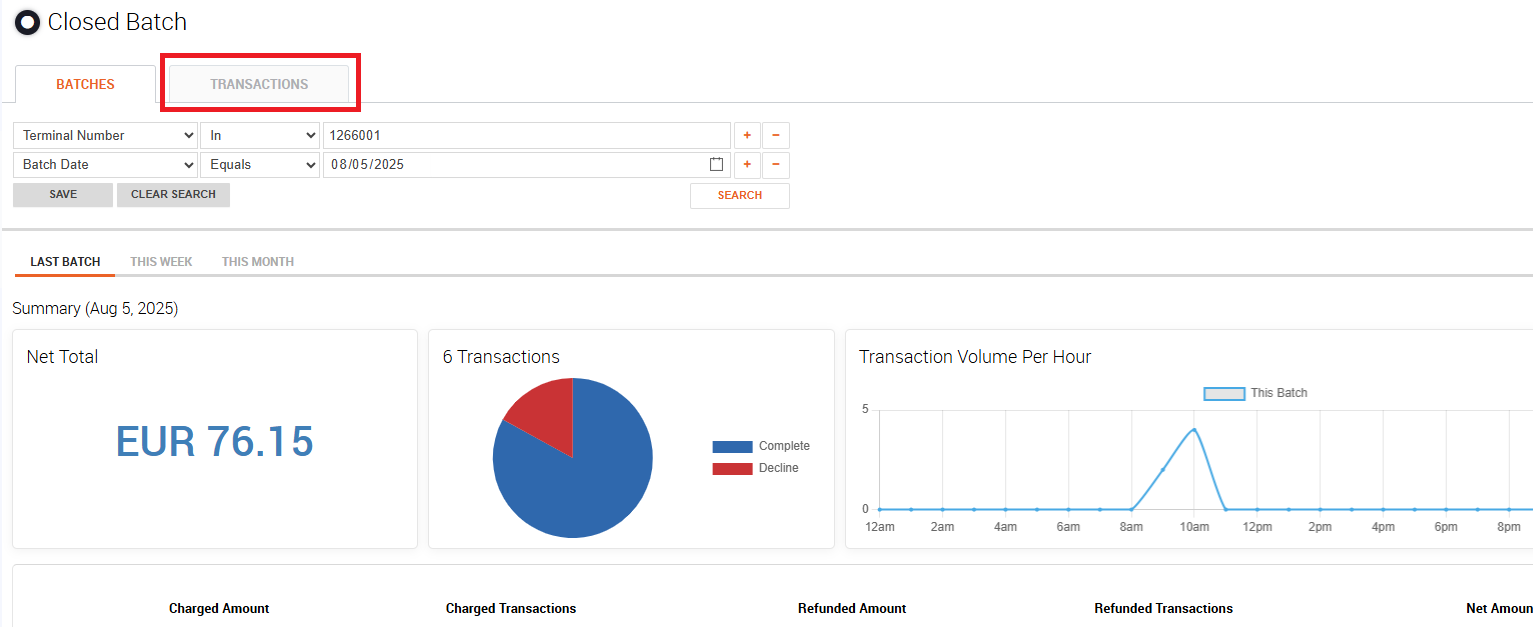
- On the side menu, select Reporting, and then select Closed Batch.
- Go to the TRANSACTIONS tab.
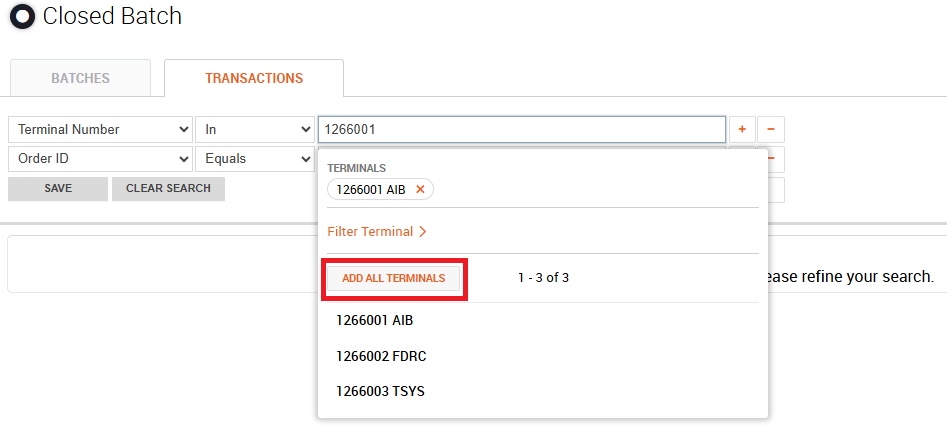
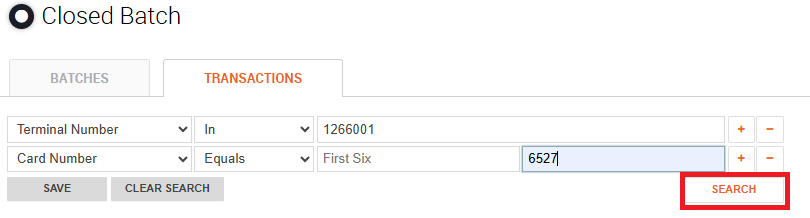
4. Select your terminal number, and then select ADD ALL TERMINALS.
5. To search for the card using the card number, select Order ID, and then select Card Number.
6. Enter the last four digits of the card number that you want to block, and then click SEARCH.
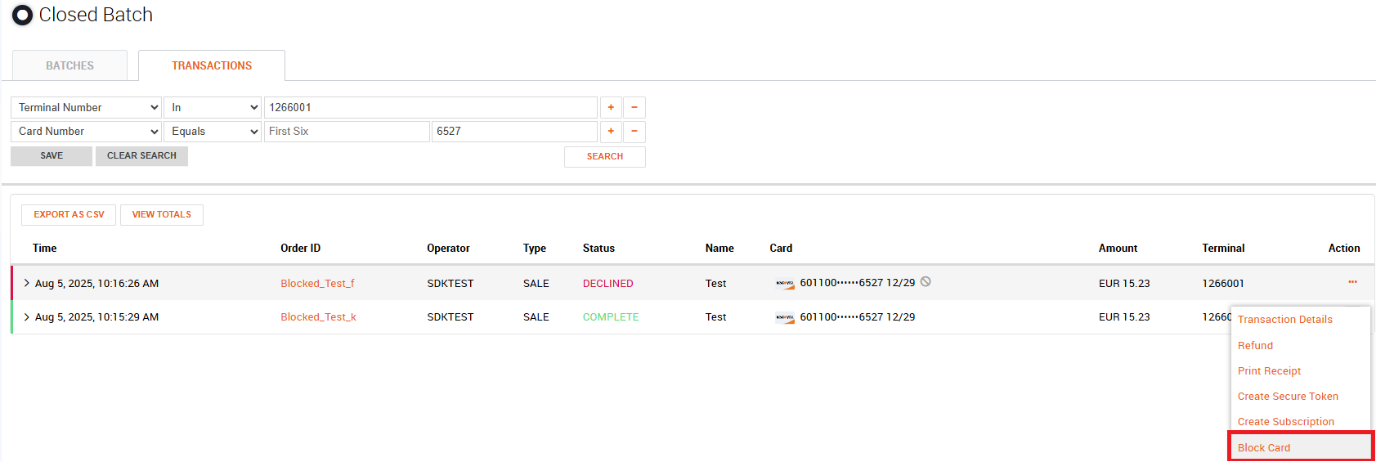
7. From the Action column, select , and then select Block Card.
8. In the dialog box, enter a reason for blocking the card, and then select BLOCK.