View your 1099-K form on Payroc Insights
Payroc Insights
View your 1099-K form
To view your 1099-K form on Payroc Insights, complete the following steps:
- Sign in to https://payroc.partnerengage.com (opens in a new tab).
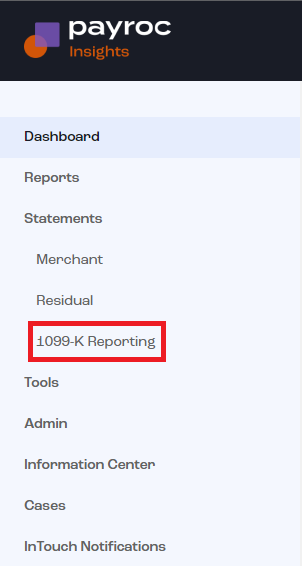
- On the side menu, select Statements, and then select 1099-K Reporting.
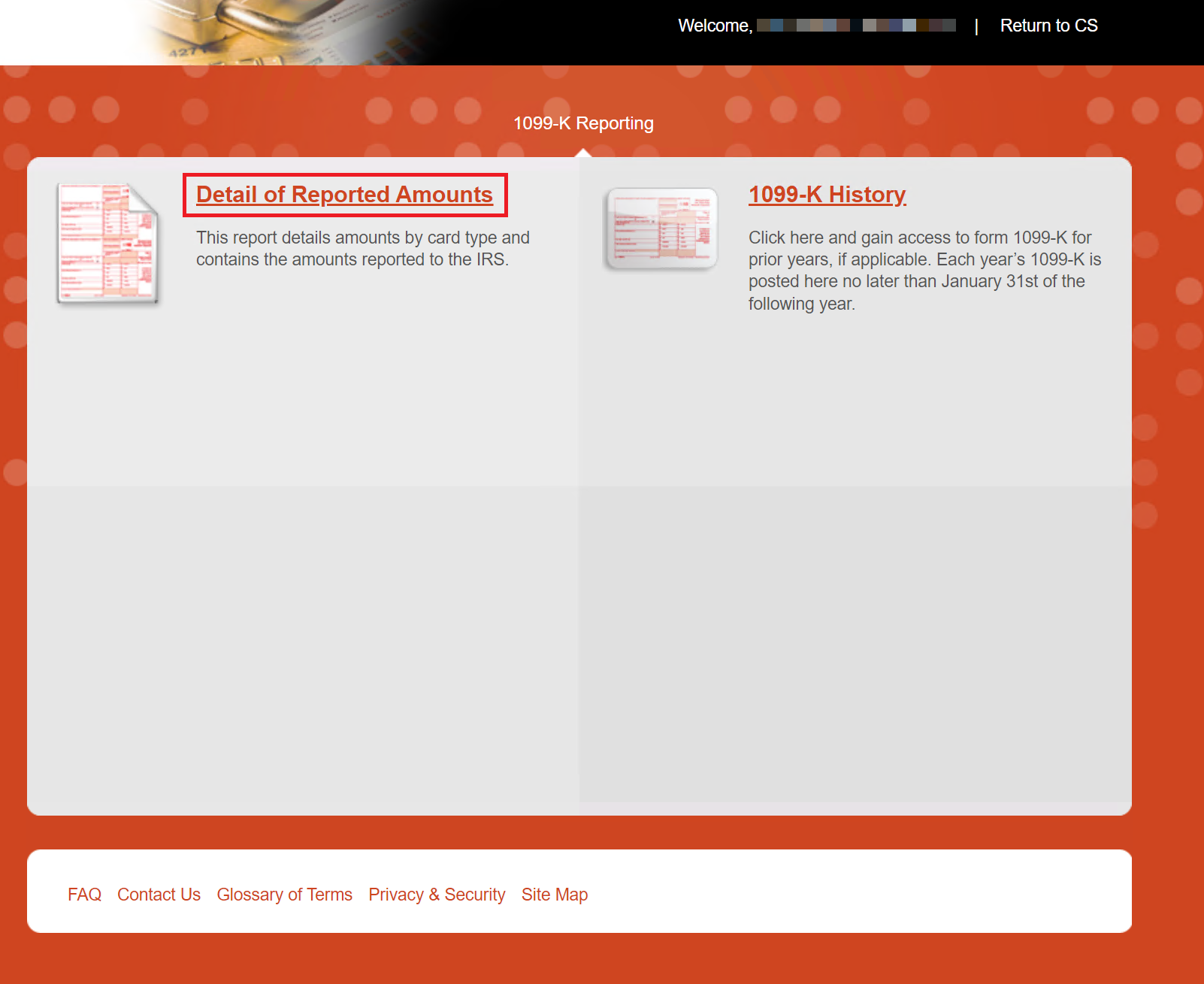
3. To view your 1099-K form, select the linked report.

4. Select Detail of Reported Amounts. The Portal displays your 1099-K form for the current year.
Consent to a paperless 1099-K form
You can update your form preference to view the form online on Payroc Insights or to receive a paper copy mailed to your business address.
- Select My Account.
- From the dropdown menu, select Edit Settings.
- Move through the Edit Settings page to 1099-K Report Status, which displays your 1099-K form and its status. The form can have one of the following statuses:
- Paperless - You can view your 1099-K form on Payroc Insights.
- Paper - We mail your 1099-K form to your business address.
- (Optional) To update your form preference, complete the following steps:
- Select Edit.

b. Update your preference.
i. To view your 1099-K form on Payroc Insights, select the checkbox.
ii. To receive a paper copy of your 1099-K form, clear the checkbox.

c. Select Confirm.