Run a bank transfer payment on Roc Terminal+
Roc Terminal+ web portal
You can use the virtual terminal in the Roc Terminal+ web portal to run a bank transfer payment.
Include the following details when you run a bank transfer payment:
| Field | Description |
|---|---|
| Amount | Amount of the transaction. |
| Phone Number | Customer’s phone number. |
| Customer’s email address. | |
| Name on Account | Customer’s name. |
| Account Number | Customer’s bank account number. |
| Routing Number | Routing number of the customer’s bank. |
| Account Type | Indicates whether the customer's account is a checking account or a savings account. |
| Entry Class | Indicates whether the customer’s bank account is a personal account or a business account. |
Run a bank transfer payment
- Log in to https://terminalplus.rocpos.com/login.
- On the side menu, select Virtual Terminal.
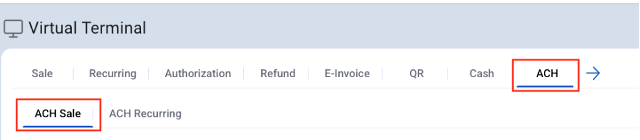
- Select the ACH tab, and then select the ACH Sale tab.
- From the EPI dropdown menu, select the endpoint identifier (EPI) of your virtual terminal.
- Enter the customer’s payment details.
- From the Txn Type dropdown menu, select Debit.
- Select PROCESS PAYMENT.
- On the confirmation screen, select OK.