Axium DX8000 Quick Start Guide
Roc Services on an AXIUM DX8000 device
To download a printable copy of the DX8000 Quick Start Guide, select the following link: DX8000 Quick Start Guide
Your new device
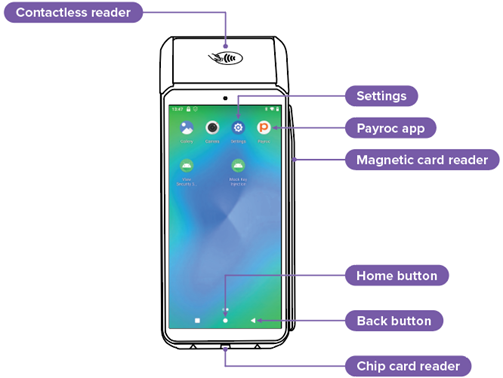
Figure 1. App screen
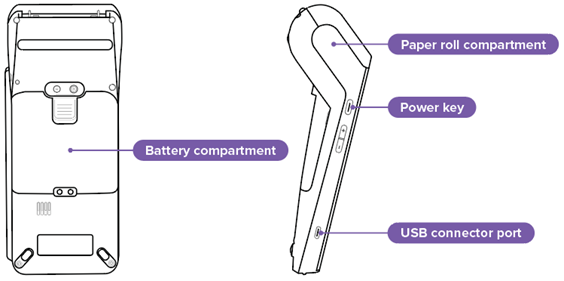
Figure 2. Hardware components
Getting to the App screen
- To return to the Home screen, tap Home
 .
. - To view the App screen, swipe left.
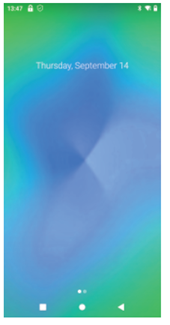
Figure 3. Your device starts on the Home screen.
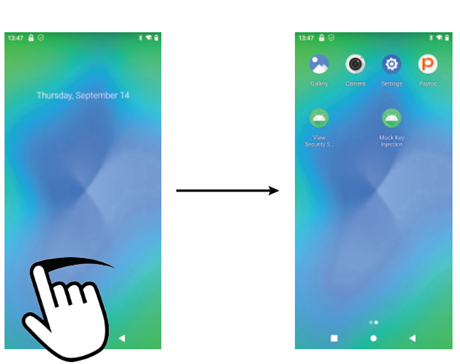
Figure 4. Moving from the Home screen to the App screen.
Getting started
To set up your device, complete the following steps:
Step 1. Turn on your device.
Step 2. Connect your device to your wireless network.
Step 3. Open the Payroc app.
Step 1. Turn on your device
- Press and hold the power button for four seconds.
Step 2. Connect to your wireless network
- On the App screen, tap Settings
 .
. - Enter 350000.
- Tap Network and internet, and then tap Wi-Fi.
- Tap the name of your wireless network.
- Enter the password for your wireless network, and then tap OK.
- Tap Connect.
- To return to the home screen, tap Home
 .
.
Step 3. Open the Payroc app
- From the Home screen, swipe left.
- Tap the Payroc app
 .
.
Troubleshooting
My device won’t charge.
- Make sure that you use the USB charging cable that came with your device.
My device doesn’t display my wireless network.
- Make sure that your device is close to your router.
My device can’t connect to my wireless network.
- Check that your password is correct.
Any questions?
Contact our Customer Support team at 888.477.4510 or email support@rocpos.com.