Create a default design template in Roc Giving
Roc Giving
You can create a default design template that aligns with your organization's brand guidelines. The template applies to campaigns that use the default brand settings.
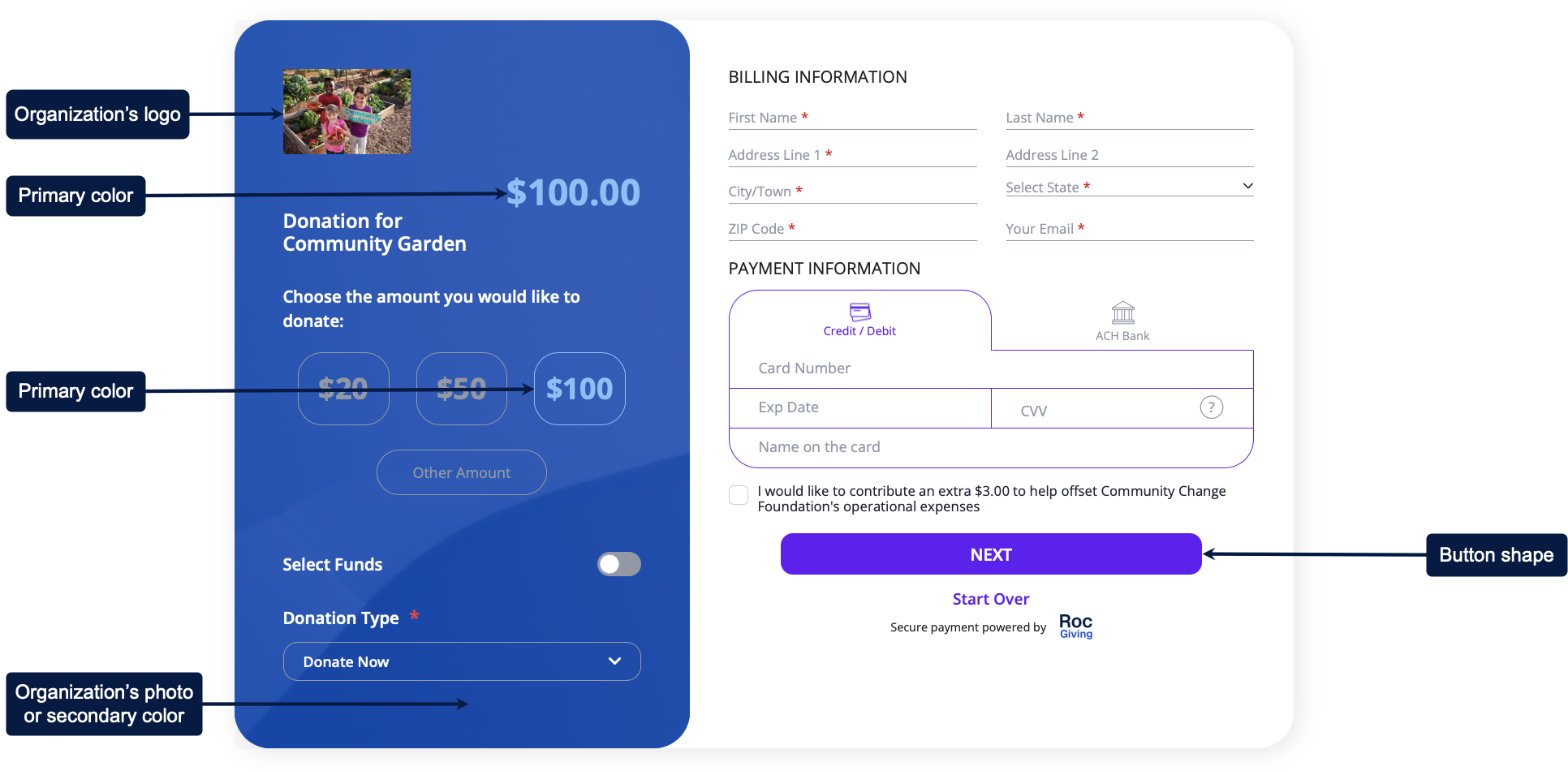
To create a default design template, complete the following steps:
- Select
 > Settings > Branding.
 - In the Upload Organization’s Logo section, upload your organization’s logo. The image must meet the following requirements:
- File format: .jpg, .gif, or .png
- File size: 1MB or smaller
- Image dimensions: 300 x 300 pixels
- In the Upload Organization’s Photo section, upload a background image for the donation overview section. The image must meet the following requirements:
- File format: .jpg, .gif, or .png
- File size: 5MB or smaller
- Image dimensions: 600 x 960 pixels
- (Optional) Adjust the background image properties and select an overlay color.
- In the Brand Colors section, choose the following color options:
- Primary Color – Text color of the donation amount selected by the donor.
- Secondary Color – Background color for the donation overview section. This color applies only if you didn’t upload a background image.
- In the Button Shape section, choose a button shape for the donate button or pledge button.
- In the Font section, choose a font style for the campaign text.
- Select Save.