View a transaction report on your AXIUM device
Payroc App on AXIUM DX8000, DX4000, and EX8000 devices
- Tap ⋮, and then tap Main Menu.
- Tap Transaction Reports.
- Tap the type of transaction report that you want to view.
- Open Batch - View the transactions from an open batch.
- Shift - View the transactions from your shift.
- Daily - View the transactions from a specific day.
- Closed - View the transactions from a closed batch.
- (Optional) To view more details about your transactions, tap one of the following areas.
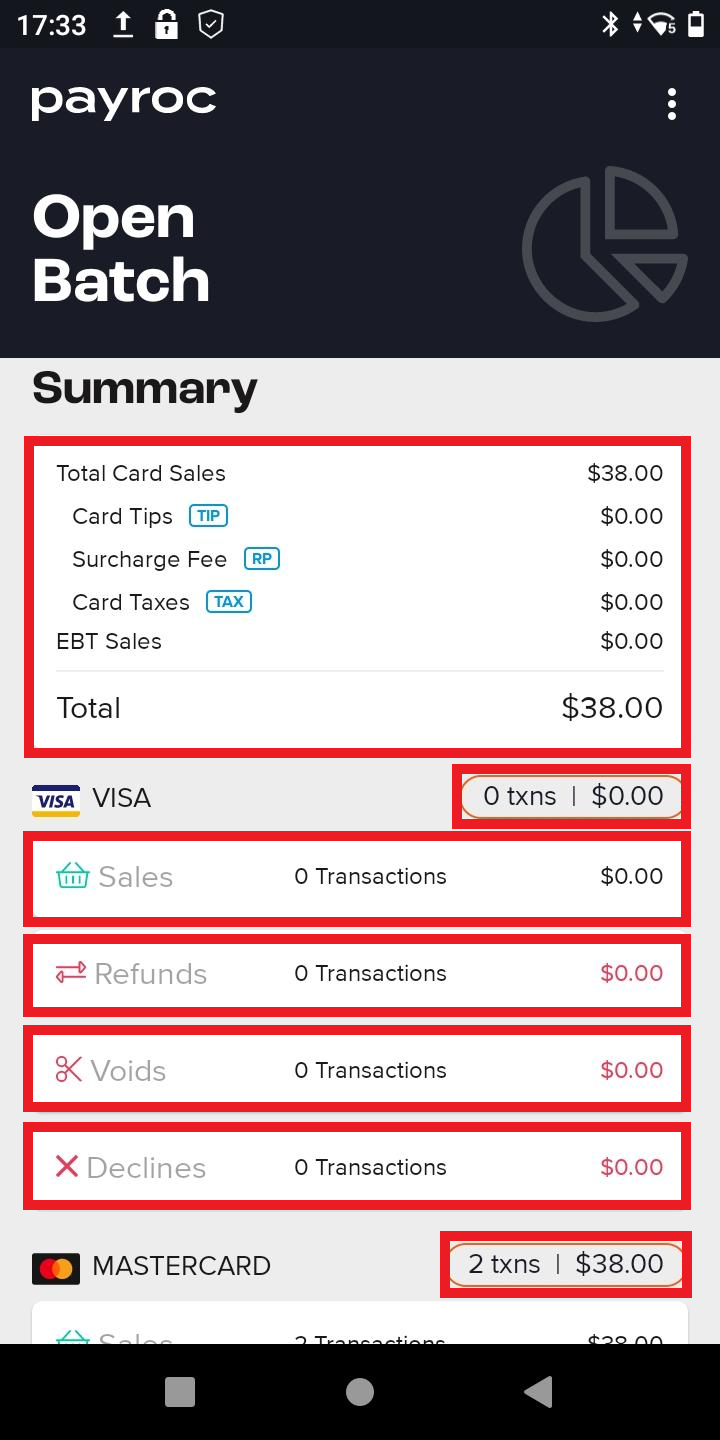
- (Optional) To print a copy of the transactions, swipe up until you reach the bottom of the page, and then tap one of the following options:
- Print Summary - Print a summary of the transactions.
- Print All Transactions - Print a list of all transactions.
- To return to the main menu, tap ⋮, and then tap Main Menu.